Know who’s connected.
An unknown device on your Wi-Fi? Find its address, type and status, then give it a name you’ll recognise.
Network scanner · Wi-Fi · LAN
Every device connected to your Wi-Fi or Ethernet network, in seconds and with no account.
Inside OS NetScan
Four real views to inventory, understand and document a network.
1 / 4 · Network
Network
Router, computers, phones, printers, NAS drives, cameras: each device appears with its IP address, type, name and status.
Names announced by the devices are marked as probable or reliable.
Read the guide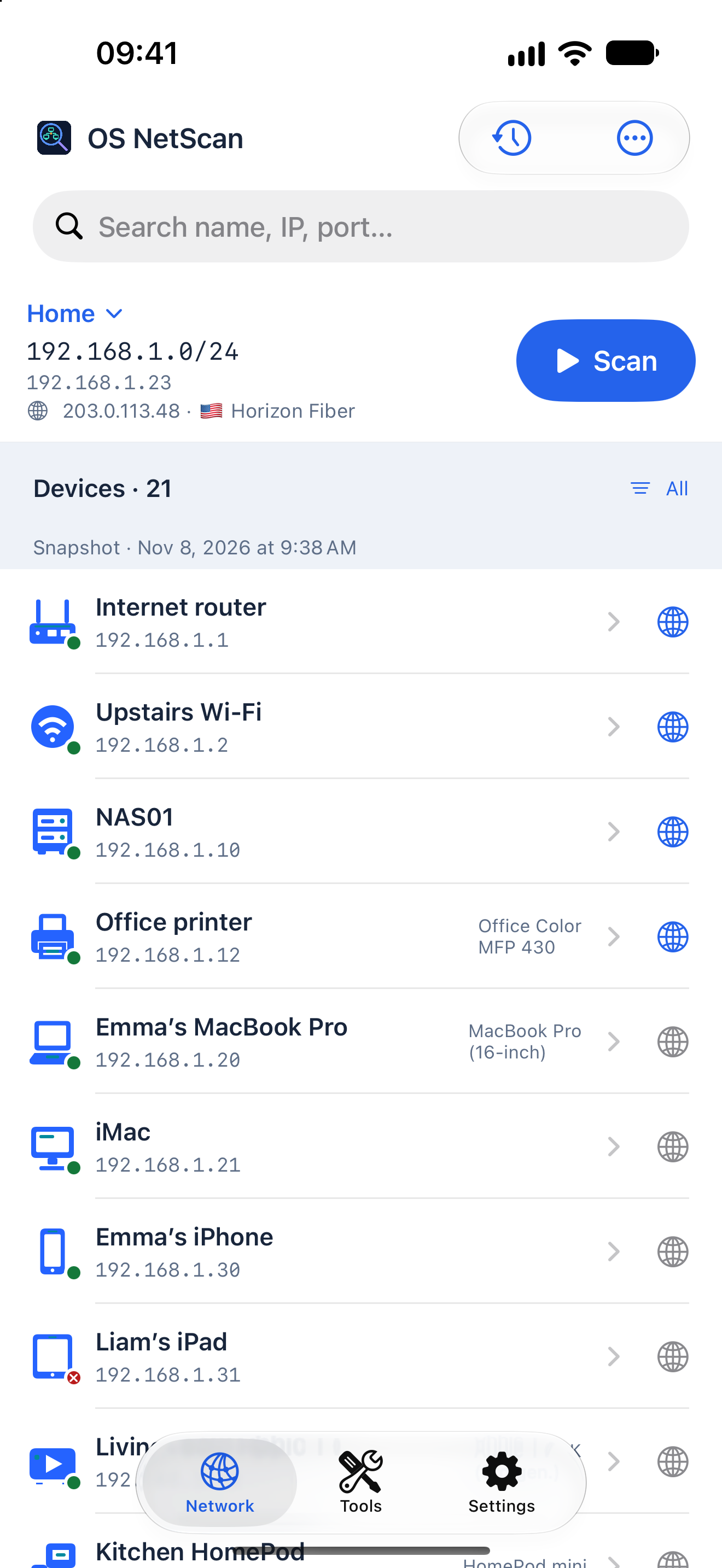
Device
IP and MAC addresses, latency, open services and verified web admin pages, opened in Safari with a single tap.
Your own names and categories are recognised on the next scan.
Read the guide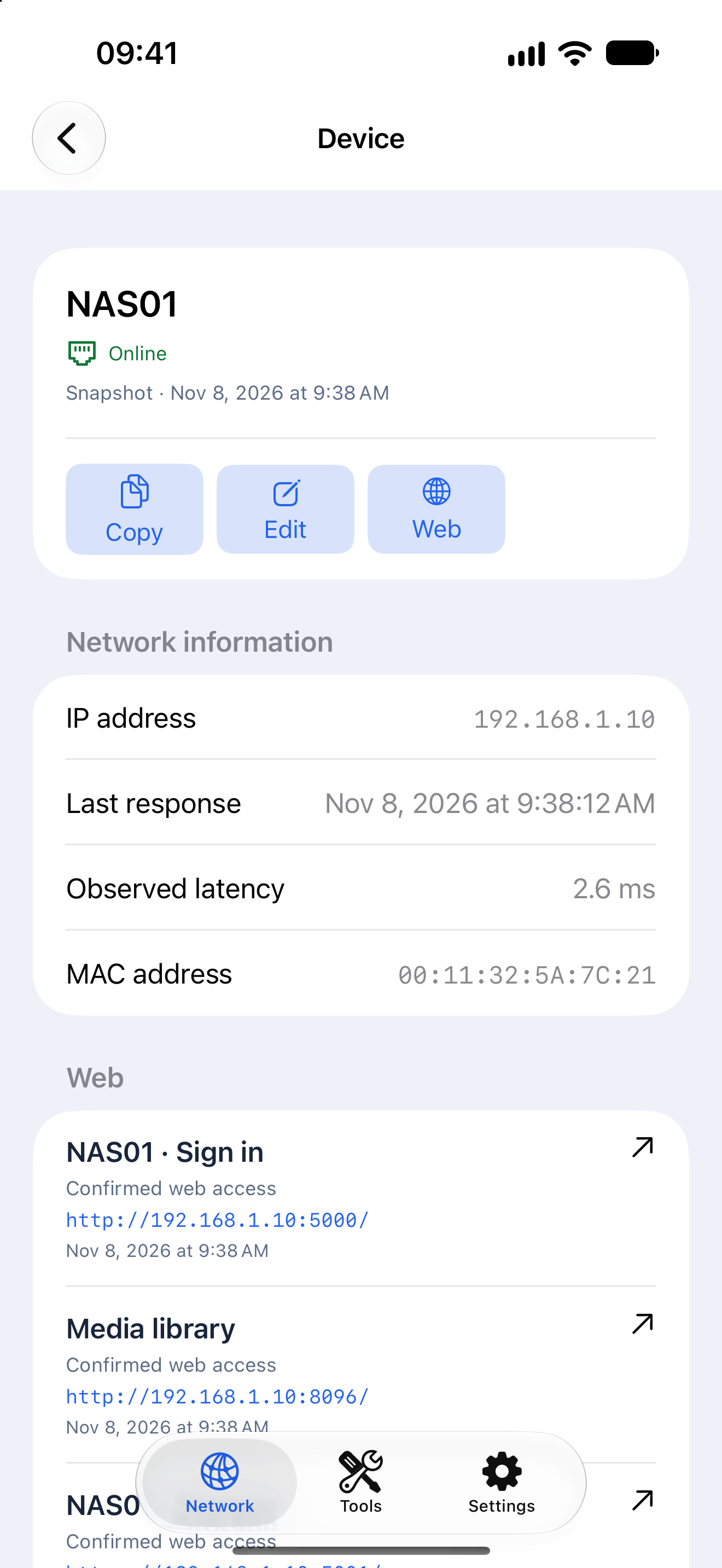
Points of attention
A sensitive service reachable on the network is flagged with an easy-to-follow recommendation.
Based on the ports and replies seen during the scan: no password is ever tried.
Read the guide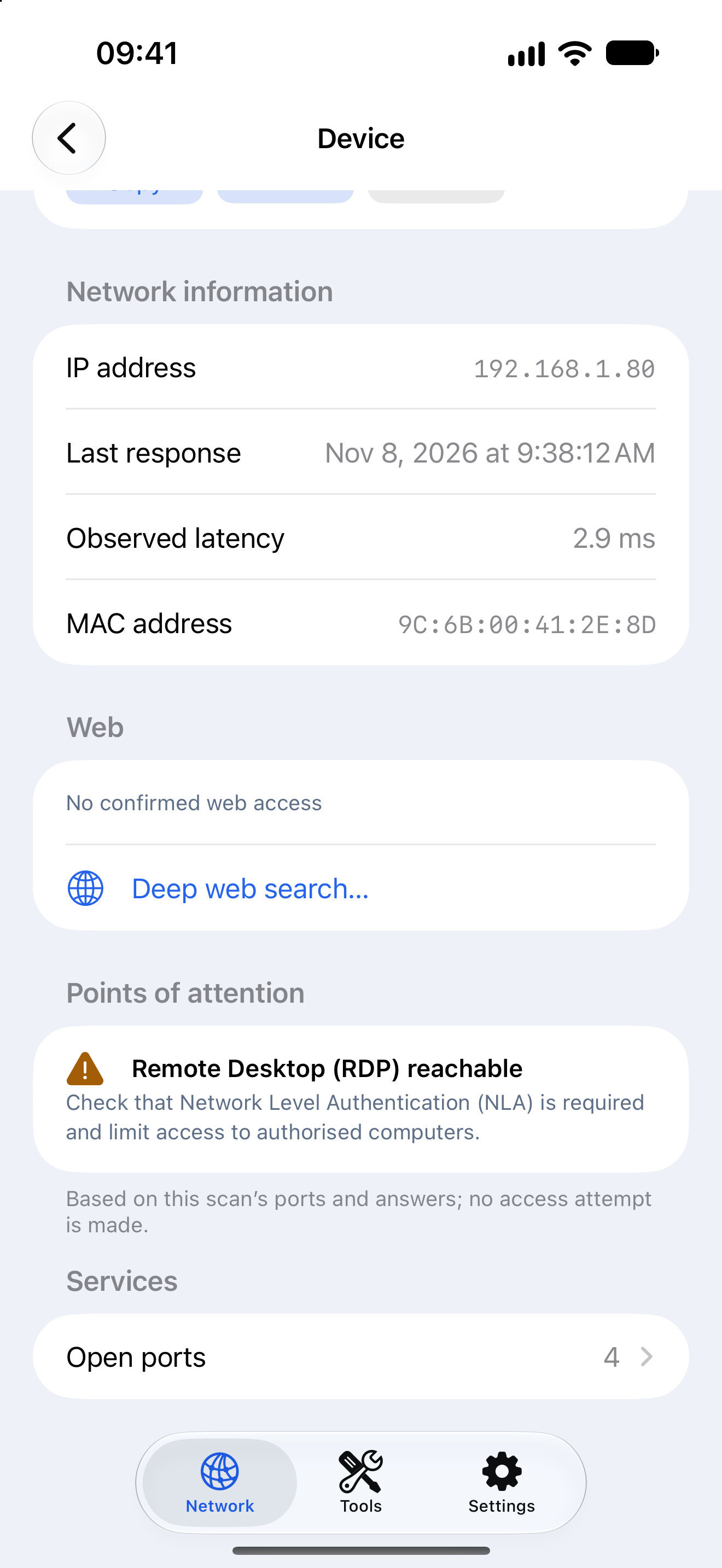
Reports
Prepare a PDF or HTML report with your name and logo, ready to send to your client.
With OS NetScan Pro.
Read the guide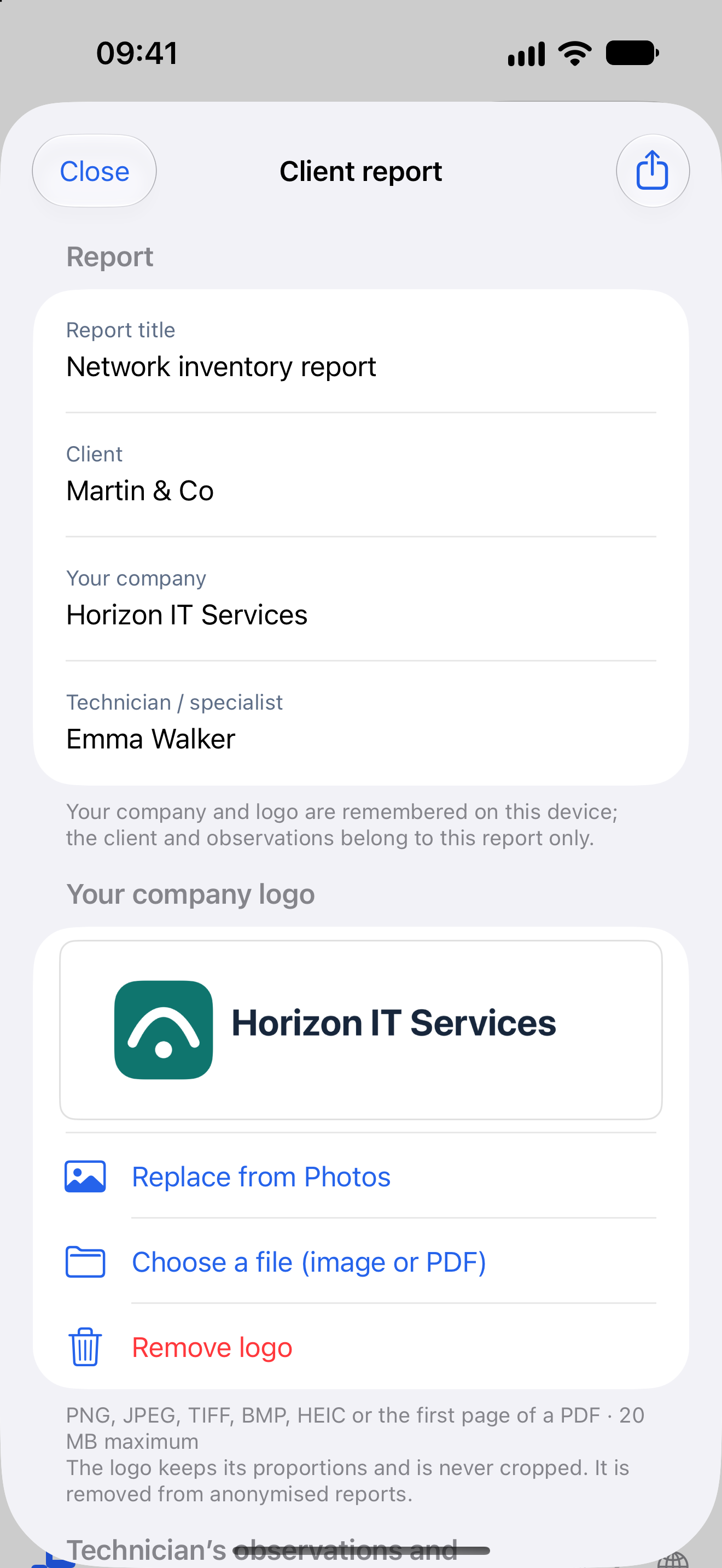
Actual app screenshots, on a demo network. Client reports require OS NetScan Pro.
Who it’s for
Wi-Fi · Ethernet · iPhone · iPad
An unknown device on your Wi-Fi? Find its address, type and status, then give it a name you’ll recognise.
Router, NAS, printer or camera: OS NetScan verifies their web admin pages and opens them in Safari with a single tap.
IT technician or small business: one site per network, the snapshot history and a report in your name, with OS NetScan Pro.
Each device appears with its IP address, type, name and online or offline status. Names and models announced by the devices (Bonjour, NetBIOS, read-only SNMP) are gathered and marked as probable or reliable.
Spotting the office printer among twenty or so devices.
Open services and ports, with plain-language names. Verified web admin pages, opened in Safari with a single tap. Your names and categories are recognised on the next scan.
Sensitive services reachable on the network are flagged with a clear recommendation.
Based on the ports and replies seen during the scan: OS NetScan never tries any password.
Ping, TCP port scan, web interface search across all ports, DNS lookup and TLS certificate viewer. Your Internet connection is shown automatically: public IP address, provider and country.
Home, office, clients: each network keeps its own settings, notes and snapshots. With OS NetScan Pro, create PDF and HTML client reports with your name and logo, plus complete CSV and JSON exports.
New-device notifications, Siri Shortcuts and scan progress in a Live Activity. On iPad, a real workspace: column table, side inspector and keyboard shortcuts, in portrait and landscape.
Tap Scan. On the first scan, iOS asks for access to the local network: allow it.
Devices appear as the scan progresses. Tap one to see its services, web pages and points of attention.
Name your devices and find every snapshot in the history. With OS NetScan Pro, share a report.
Privacy
Addresses, names, types, ports, services, snapshots, sites and notes stay on your iPhone or iPad. No OS Studio account is needed. No inventory is sent to an OS Studio server or to the advertising service. Nothing is installed on the devices found.
OS NetScan only scans the active network or the address range you choose, and never tries any password. To show your public IP address, the app queries the ipify service, or ident.me as a fallback, without any inventory data.
At your own pace
Start for free with ads, or move up to OS NetScan Pro, ad-free, for larger networks and client work. No free trial is offered.
€0 · with ads
€1.99/month
€9.99/year
One OS NetScan Pro subscription for iPhone and iPad. Family Sharing is not available. If the subscription ends, your snapshots are kept.
France reference prices. Apple displays the applicable price and billing period before purchase. The subscription renews automatically unless cancelled at least 24 hours before the end of the current period, in your Apple Account settings. Manage and restore purchases in the app: Settings › OS NetScan Pro.
Support
Find helpful answers, privacy information and a way to contact the studio.